

Step 1. #
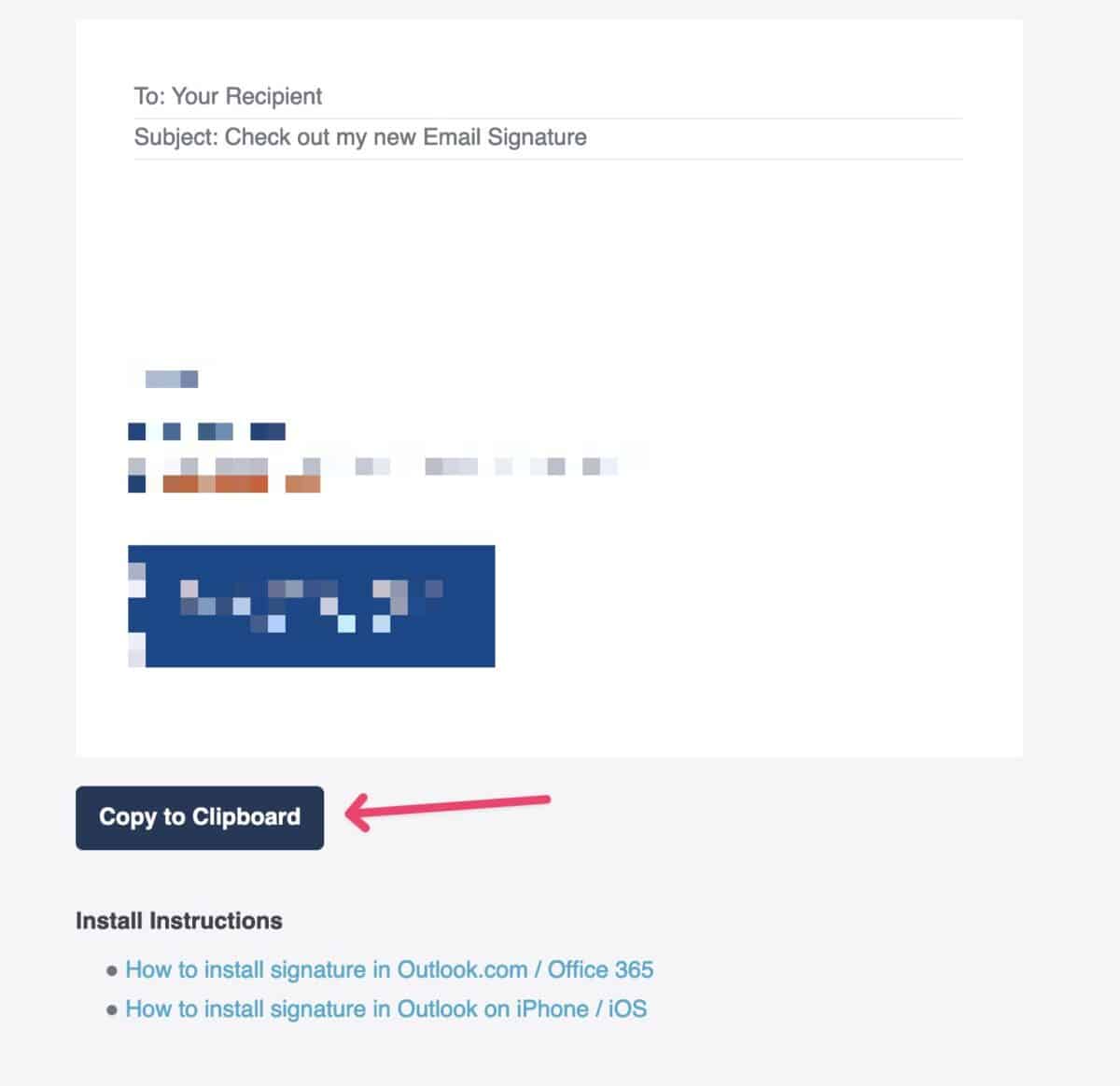
Open the signature sent to you in a browser than click the Copy to clipboard button.
Step 2. #
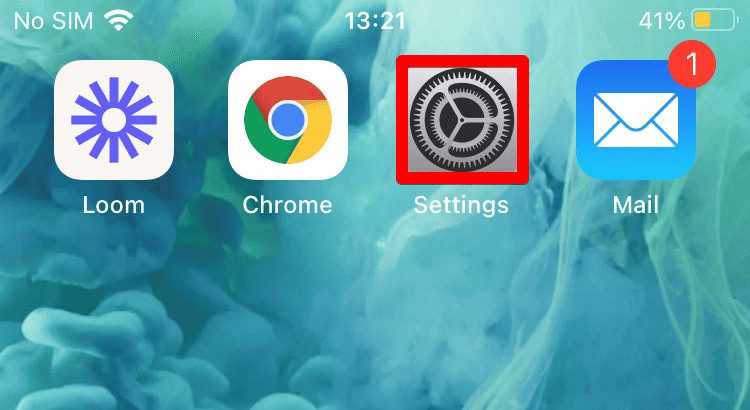
Go to iPhone/iPad Settings.
Step 3. #
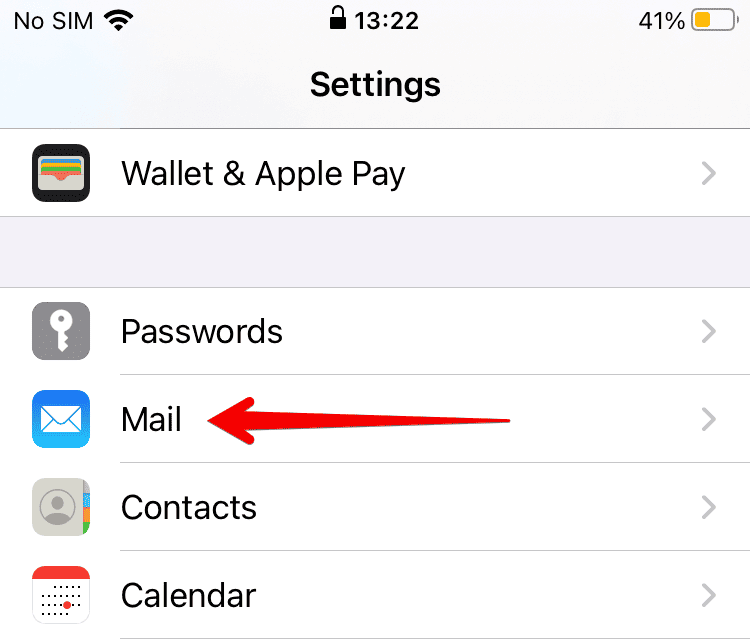
Swipe down and tap Mail.
Step 4. #
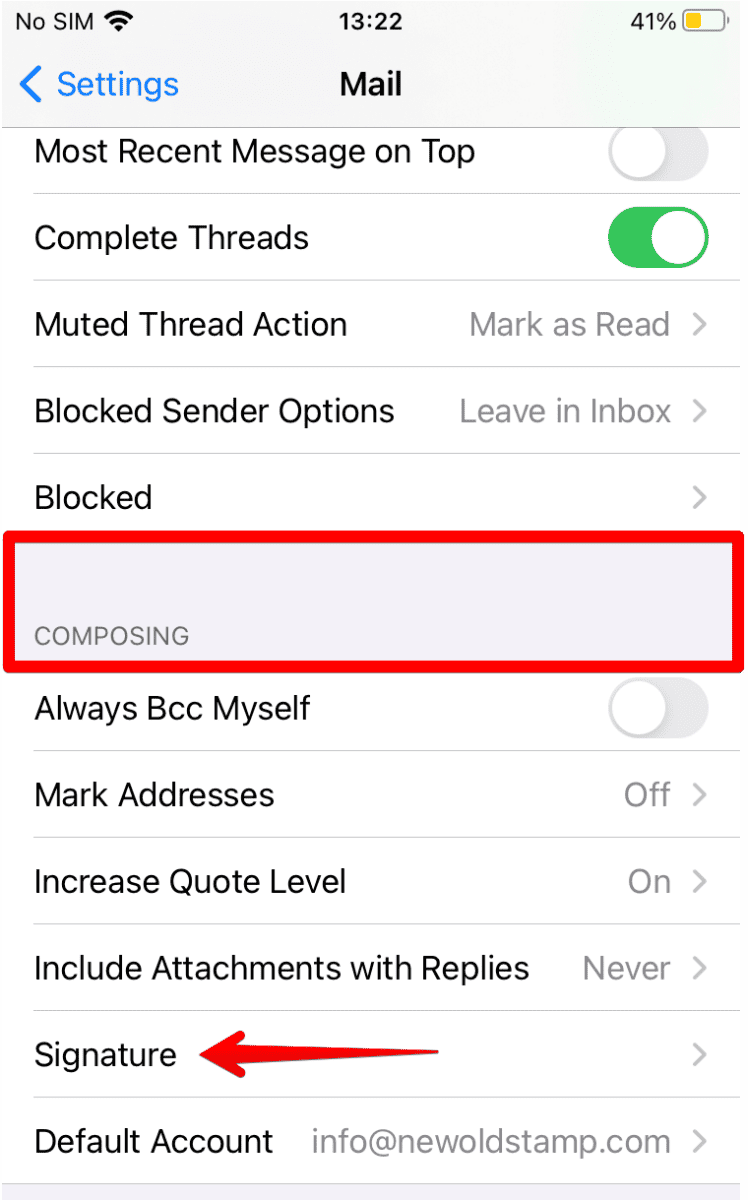
Swipe down and select Signature.
Step 5. #
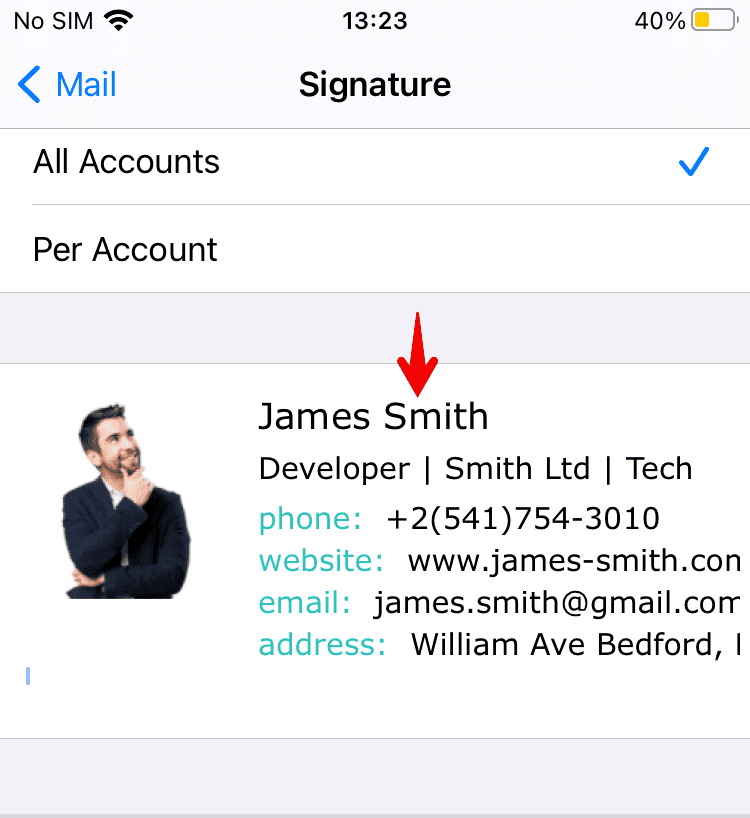
Tap and hold the signature box and Paste your Signature (it can be the same for all accounts or per account).
Step 6. #
It is essential to Shake the iPhone/iPad physically after pasting the Signature, then select Undo.
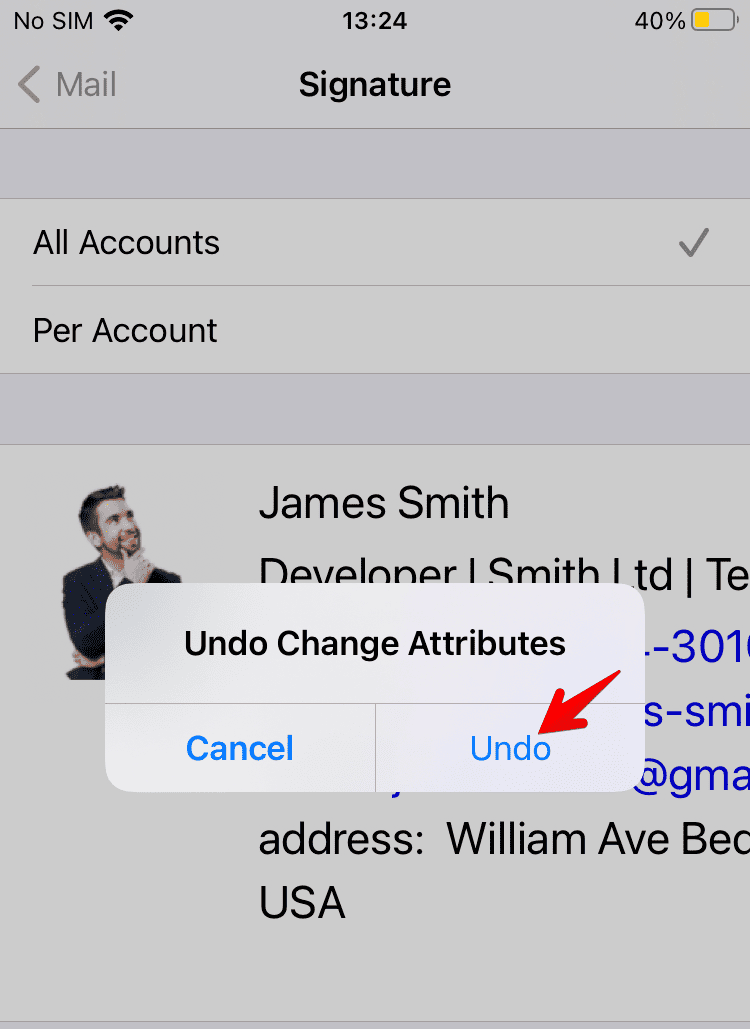
Note: If the Undo option doesn’t appear after you shake the phone, go to Settings > Accessibility > Touch > Shake To Undo > turn On.
Step 6. #
Close the signature settings window regardless of how the Signature looks on the preview, as sometimes it may look disrupted.