

Step 1. #
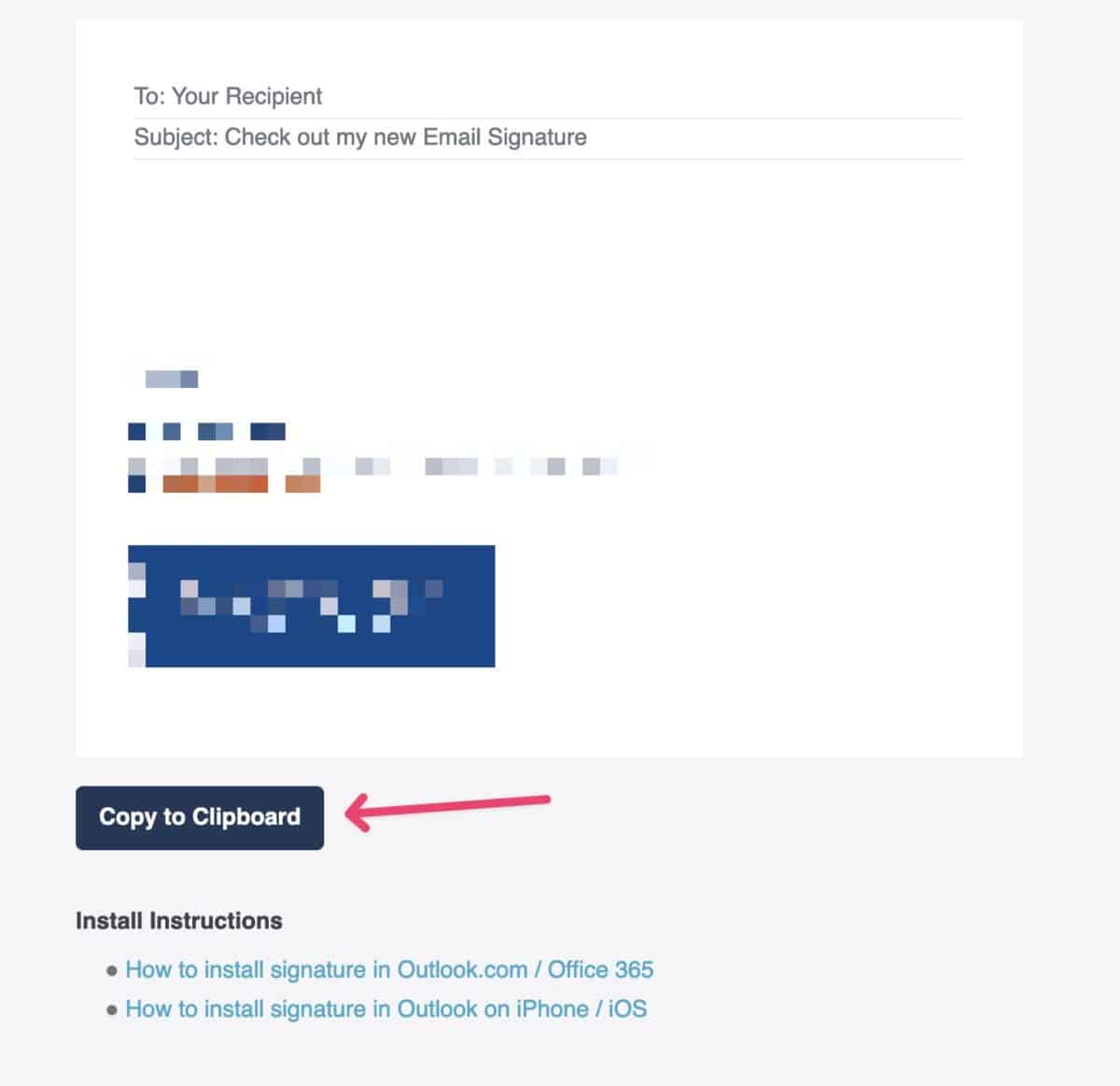
Please open the signature url sent to you on your iPhone.
Next, scroll down to see your signature and click on Copy to clipboard button.
Step 2. #
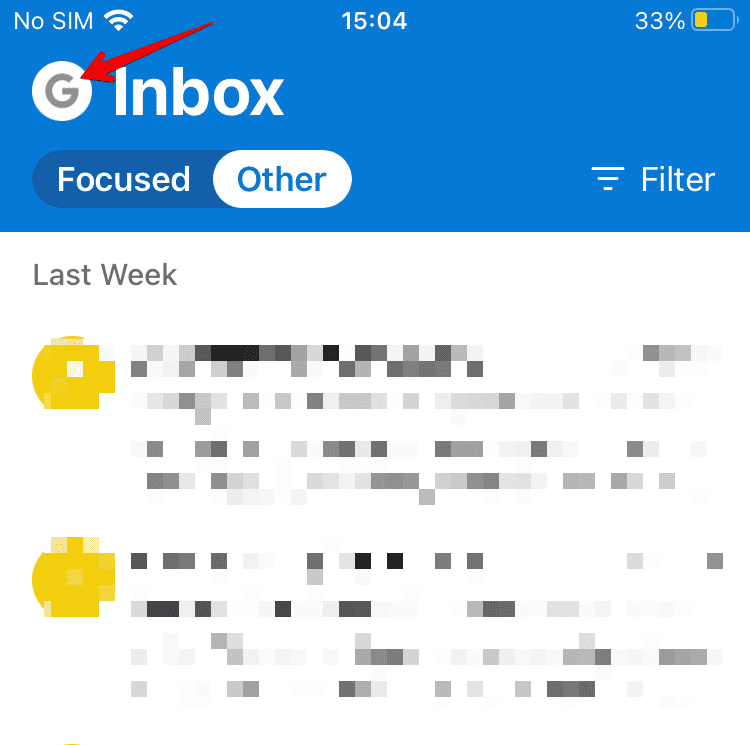
Next, open the Outlook app on your iPhone and tap your account icon from the top left.
Step 3. #
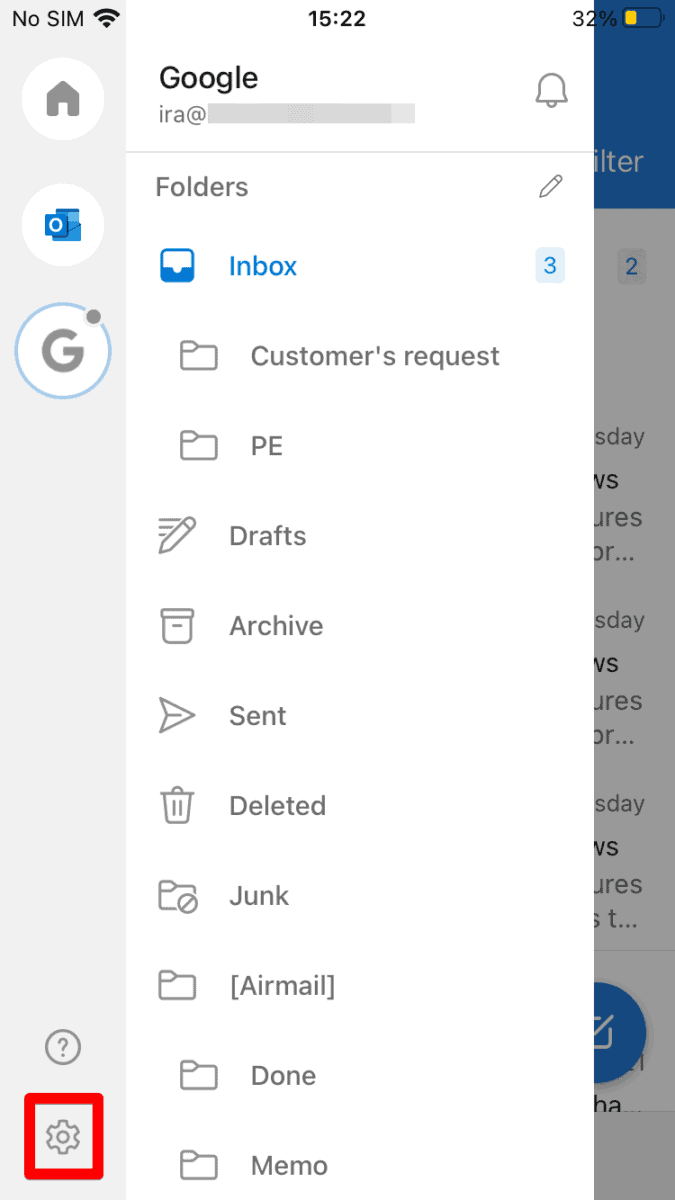
Tap the Settings gear icon on the bottom left of the menu.
Step 4. #
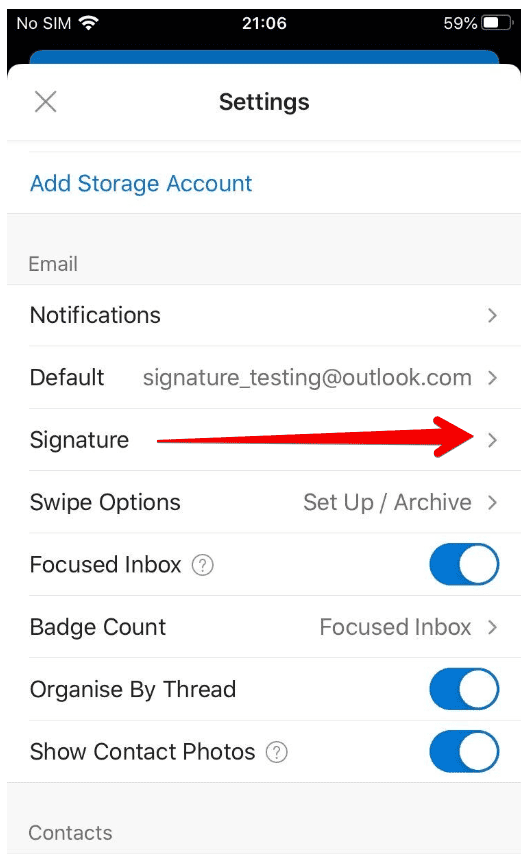
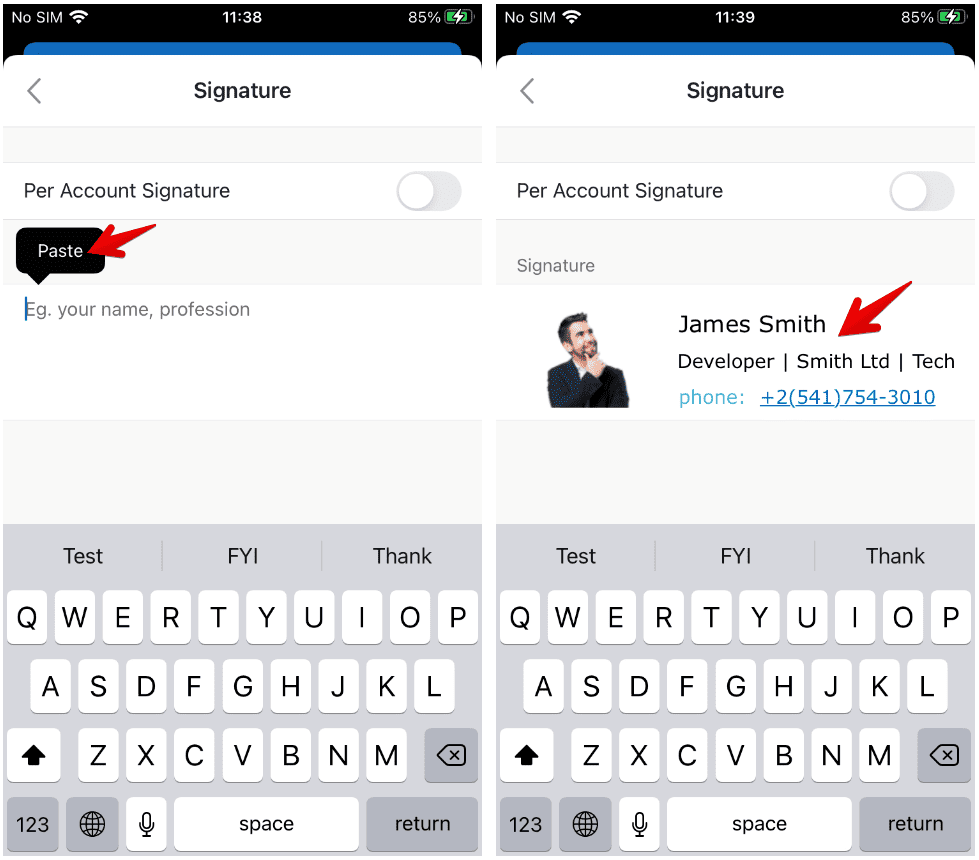
When you’re in the Settings menu, tap on the Signature section.
Step 5. #
Press and hold over the email signature area; paste your HTML signature there.
Step 6. #
Click back and close out the settings window.
Done! Your new email signature is installed. Please test it out by composing a new email to ensure it works.
You can send one to me if you like gareth@weave.co.nz