

Step 1. #
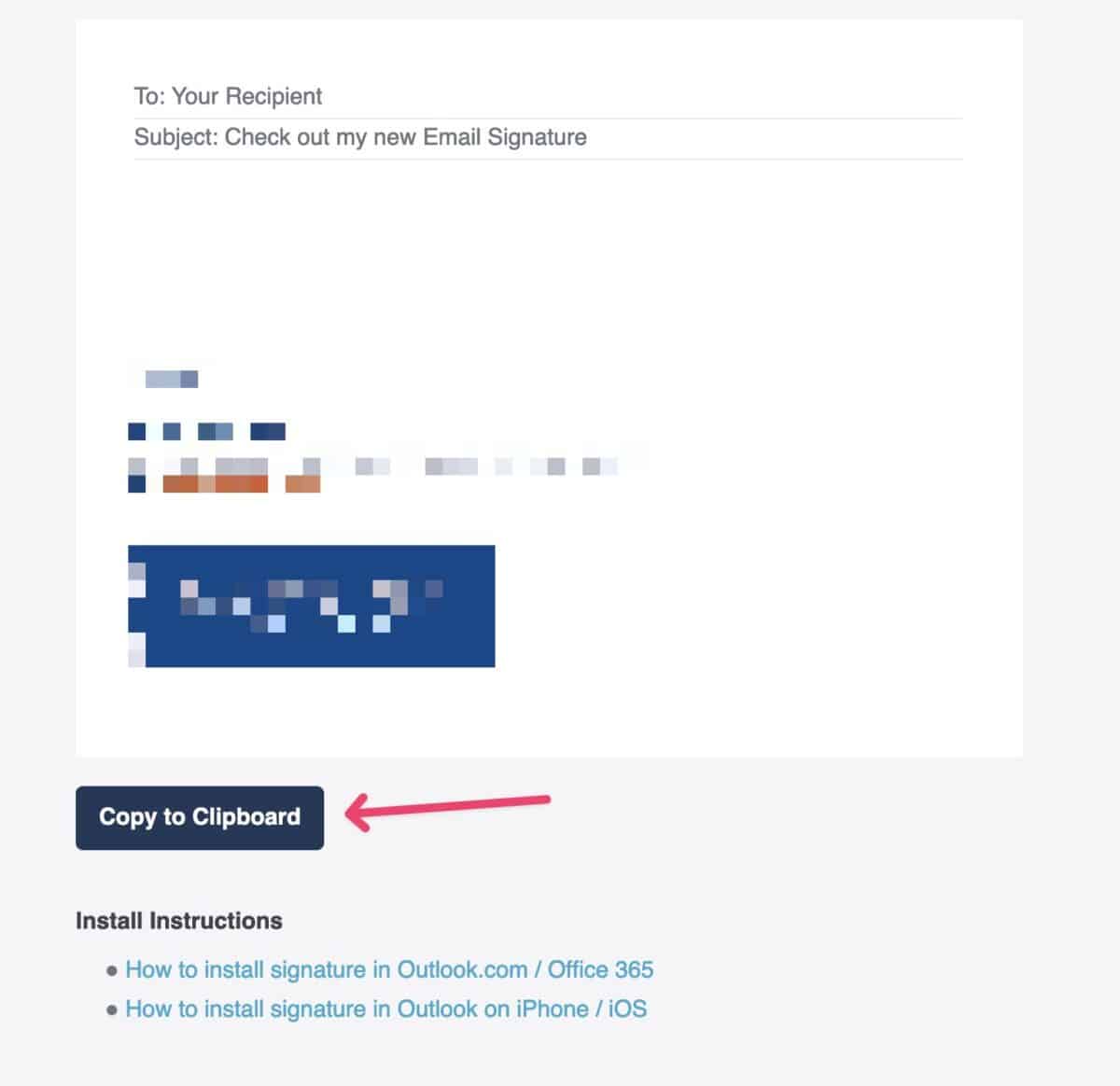
Open the signature sent to you in a browser than click the Copy to clipboard button.
Step 2. #
Open your browser and log in to Outlook.com.
Step 3. #
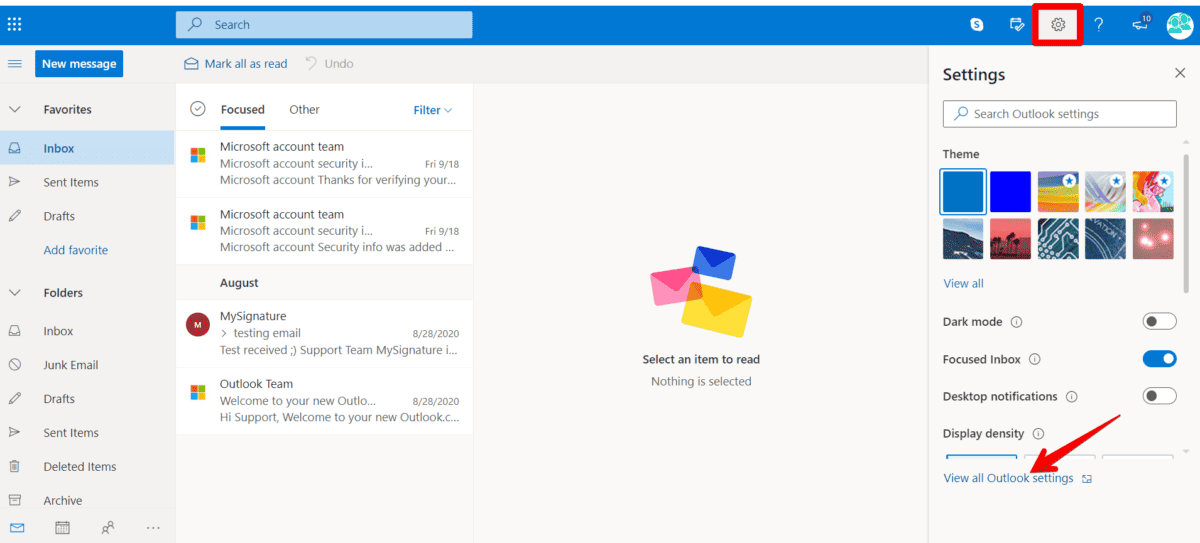
Open Quick settings and choose View all Outlook settings at the bottom.
Step 4. #
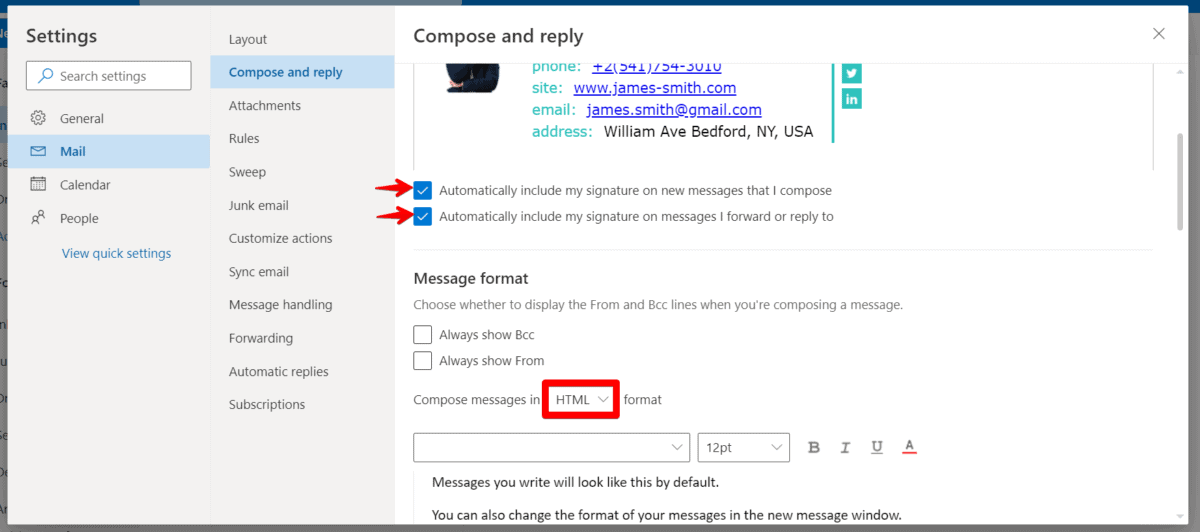
Settings will open up in the Mail tab (which we need). Then go to Compose and reply. The signature section will be right there.
Step 5. #
Paste your signature to the signature section.
Note: Please make sure to put the tick in two options under to make sure your signature will show up in your composed/forwarded/replied emails and choose HTML format for writing new messages.
Step 6. #
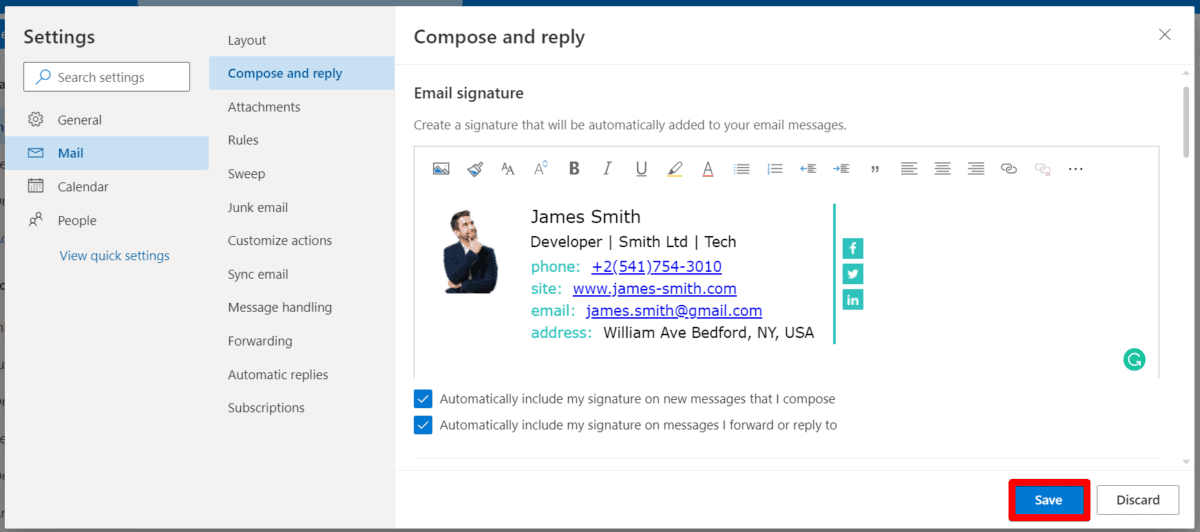
Save changes by clicking Save button. Then close the settings window.
Step 7. #
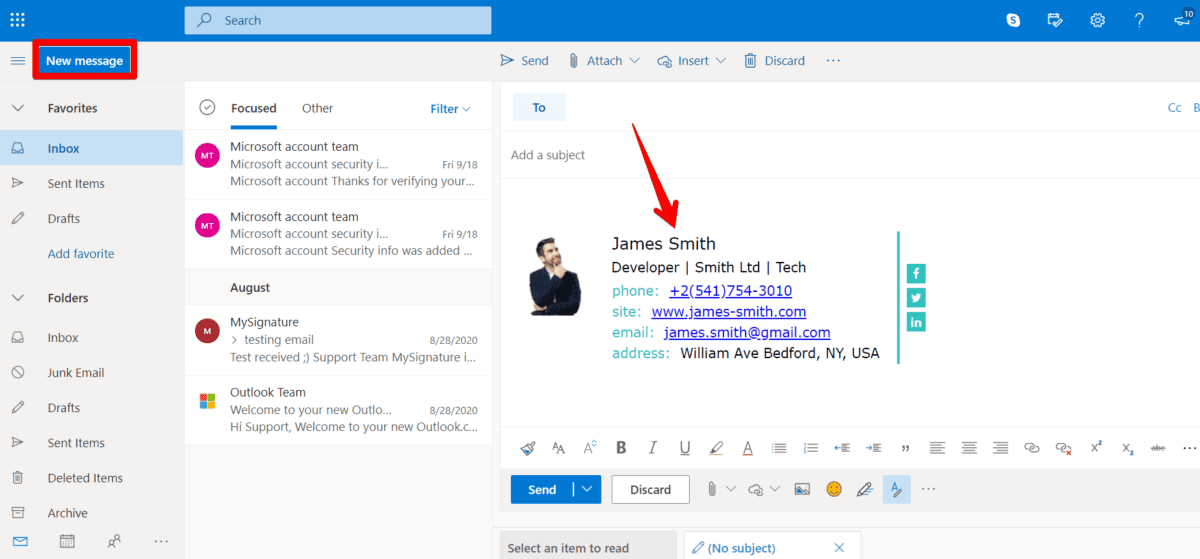
Compose a new email and see what the signature looks like there.
Or, watch this video guide (coming soon)
Done! Every new email, reply, or forward message you compose will have your Outlook.com email signature.